Quick-guide on Running LLMs Locally on macOS
Sending every prompt to a third-party API gets old, especially when half the prompts are "rewrite this paragraph" or "what's the JSON schema for this." Local LLMs solved that for me on Apple Silicon faster than I expected. A 7B model in 4-bit quantization runs comfortably on a 16 GB MacBook, and the round-trip stops at the keyboard.
So the open question is which app to drive it from. Ollama, LM Studio, llama.cpp, MLX, and a handful of others all wrap similar inference engines and the same GGUF files. They differ on how much friction sits between you and the model: at one end, double-click and type; at the other, compile from source and then read the man page.
Key concepts
- Inference: running the model to generate text.
- Quantization (GGUF): a technique to shrink model size with minimal quality loss. You'll see filenames like
llama-3-8b-Q4_K_M.gguf. TheQ4part means 4-bit quantization, which uses far less RAM than the full 16-bit weights. - Apple Silicon (Metal): Apple's M-series chips share RAM between CPU and GPU (Apple calls this "Unified Memory"). That's why a MacBook with 32GB or 64GB can load models that would need an expensive dedicated GPU on a PC.
Prerequisites
- Hardware: a Mac with Apple Silicon (M1 through M4) is what you want. Intel Macs work, but they're noticeably slower.
- RAM:
- 8GB: fine for small models (Mistral 7B, Llama 3 8B).
- 16GB+: comfortable for larger models and multitasking.
- Disk space: models are big. Plan for around 10-20GB for a useful starter library.

1. Ollama - The "Just Works" Option
Download: ollama.com
Think of Ollama as the "Docker for LLMs." It wraps the llama.cpp engine in a native macOS package, pulls models on demand, and routes work to Metal automatically. You install it, run one command, and you're chatting. This is the easiest path if you just want a working LLM and an HTTP endpoint to point your code at.
Example workflow
# 1. Download and run Llama 3 (it auto-downloads if needed)
ollama run llama3

# 2. Use it in your code via the local API
curl http://localhost:11434/api/generate -d '{
  "model": "llama3",
  "prompt": "Explain quantum computing to a 5-year-old",
  "stream": false
}'
Pros & cons
| ✅ Pros | ❌ Cons |
|---|---|
Easiest setup (drag-and-drop .dmg) |
Core application is closed-source |
Clean CLI (ollama list, ollama pull) |
Less granular control over generation parameters |
| Large library of pre-configured models |
2. LM Studio - The Visual Explorer
Download: lmstudio.ai
LM Studio is the GUI-first option. It has an App-Store-style browser for searching HuggingFace directly, supports Apple's MLX format alongside GGUF (which can be faster on some Macs), and exposes an OpenAI-compatible local server. So existing client code that already talks to OpenAI mostly just works.
Example workflow
You can use the official Python SDK, or any OpenAI-compatible client pointed at the local server:
# Using the official LM Studio SDK
from lmstudio import LMStudio

client = LMStudio()
response = client.complete(
    model="llama-3-8b",
    prompt="Write a haiku about debugging."
)
print(response.content)
Pros & cons
| ✅ Pros | ❌ Cons |
|---|---|
| Polished, easy-to-use interface | GUI is closed-source |
| Native support for both GGUF and MLX models | Larger download (~750MB) |
| Built-in RAG (chat with your PDFs) |
3. llama.cpp - The Power User's Tool
Repo: github.com/ggml-org/llama.cpp
This is the engine almost every other tool wraps. If you want maximum performance, the latest features the day they land, or to embed an LLM into your own C++ application, this is the source. It's bare-metal and lightweight, but the price is that you manage everything yourself: downloads, formats, and dozens of CLI flags.
Example workflow
# 1. Install via Homebrew
brew install llama.cpp

# 2. Download a model manually (e.g., from HuggingFace)
huggingface-cli download TheBloke/Llama-3-8B-Instruct-GGUF --local-dir .

# 3. Run inference with full control
llama-cli -m llama-3-8b-instruct.Q4_K_M.gguf \
  -p "Write a python script to sort a list" \
  -n 512 \
  --temp 0.7 \
  --ctx-size 4096
Pros & cons
| ✅ Pros | ❌ Cons |
|---|---|
| Full control over every parameter | Steep learning curve (CLI only) |
| MIT licensed (open source) | Manual model management |
| Very lightweight (<30MB) |
4. GPT4All - Privacy-First & RAG
Download: gpt4all.io
GPT4All is built around two ideas: privacy and documents. Its headline feature, LocalDocs, lets you point the app at a folder of PDFs, notes, or code and chat with the contents directly. Everything runs offline with no telemetry. It's the easiest way to get a working RAG setup on your machine without writing any code.
Pros & cons
| ✅ Pros | ❌ Cons |
|---|---|
| LocalDocs RAG works well out of the box | GUI-only (no headless mode) |
| Completely offline & private | Heavier resource usage than Ollama |
| Cross-platform (Mac, Windows, Linux) |
5. KoboldCPP - For Storytellers
Repo: github.com/LostRuins/koboldcpp
A fork of llama.cpp aimed at creative writing and tabletop-style RPGs. It runs as a local web app with tools for long-form generation: "World Info," character memory, and story-consistency hacks that try to keep the model on the rails over thousands of tokens. The audience is writers and people running text-based RPGs; if you mostly want chat or coding, the regular UI will feel cramped.
Example workflow
# 1. Download the single binary
wget https://github.com/LostRuins/koboldcpp/releases/latest/download/koboldcpp-mac.zip

# 2. Run it (launches a web server)
./koboldcpp --model llama-3-8b.gguf --port 5001 --smartcontext
Pros & cons
| ✅ Pros | ❌ Cons |
|---|---|
| Strong tools for creative writing | Niche UI (not great for coding/chat) |
| Single-file executable (no installation) | AGPL license (restrictive for commercial use) |
Honorable mention: MLX-LM
If you're a Python developer on Apple Silicon, look at MLX-LM from Apple. It's a framework tuned for the M-series chips, and on the right hardware it's often the fastest way to run a model locally. The tradeoff is that it's less hand-held than Ollama: more Python, fewer guardrails.
Summary: which tool is right for you?
A quick decision tree:
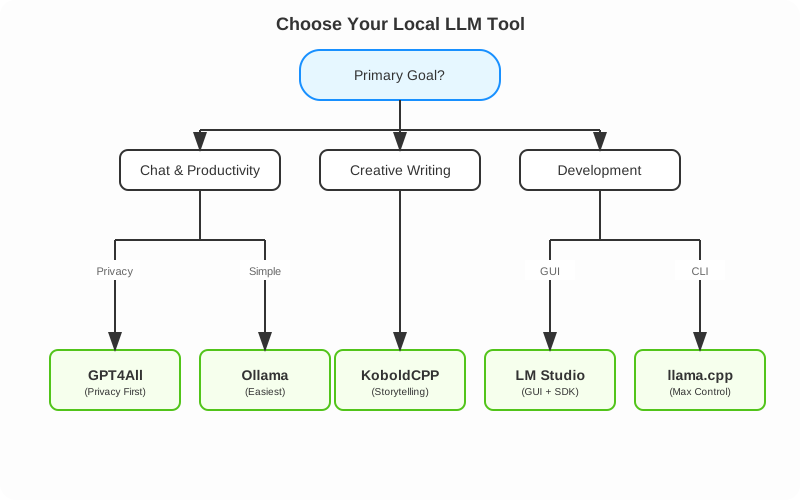
Quick comparison table
| Tool | Interface | Difficulty | Best feature |
|---|---|---|---|
| Ollama | CLI / Menu Bar | ⭐ (Easy) | "Just Works" experience |
| LM Studio | GUI | ⭐ (Easy) | Model discovery & UI |
| GPT4All | GUI | ⭐ (Easy) | Chat with local docs (RAG) |
| KoboldCPP | Web UI | ⭐⭐ (Medium) | Creative writing tools |
| llama.cpp | CLI | ⭐⭐⭐ (Hard) | Raw performance & control |
What to actually pick
- Start with Ollama if you just want something running today.
- Reach for LM Studio if you'd rather browse models visually first.
- Drop down to llama.cpp when you need full control over inference.