Quick-guide on Local Stable-Diffusion Toolkits for macOS
A .safetensors file is a few gigabytes of weights. Once you've downloaded one, every Stable Diffusion app on macOS can run it. The thing that varies between apps is everything that wraps the file: the UI, the workflow conventions, how much you have to learn before you produce a usable image.
So picking one is mostly a UX decision, not a model decision. The range goes from drag-and-drop apps you can use without reading anything, up to node graphs that take a weekend to feel comfortable in.
How these tools work
All these applications do the same job: they put a UI in front of Stable Diffusion. Behind the scenes they load model weights, manage memory, and push work to your Mac's GPU.
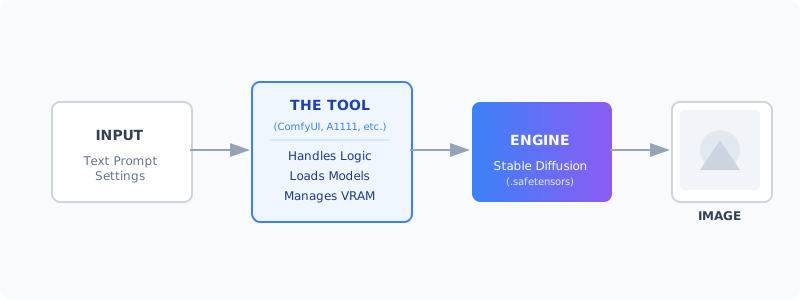
Because they share the same underlying architecture, you can usually share model files (.safetensors) between them. Download a model once, then try it in a few apps to see which workflow you prefer.
The Apple Silicon advantage
Why is the Mac so good for this? Unified Memory. On a PC with a discrete GPU you might only have 8GB or 12GB of VRAM. On a Mac, the GPU sees your full system RAM.
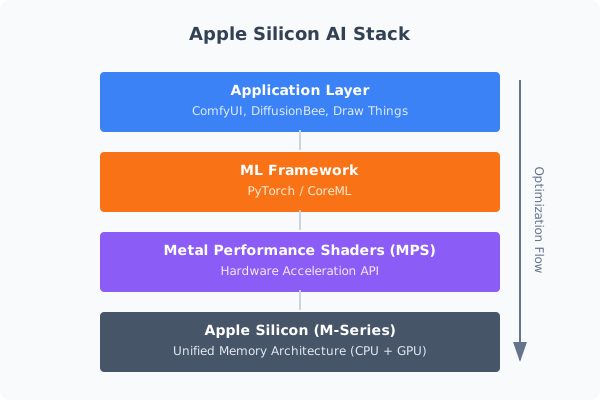
So a MacBook Pro with 32GB or 64GB of RAM can load models like SDXL or Flux that simply won't fit on a typical gaming PC.
1. Draw Things - Native and Optimized
- Download: App Store Link
Draw Things is built specifically for Apple Silicon. It ships as a native iOS/macOS app, no Python, no terminal, no browser, and squeezes more out of Metal than anything else on this list. The feature set is not stripped down either: ControlNet, Inpainting, Outpainting, LoRAs, and scriptable workflows are all included. The tradeoff is a dense UI that tries to fit a lot onto one screen. It scales from iPhone to Mac, and it shows.
2. DiffusionBee - The Simplest Starting Point
- Download: diffusionbee.com
If you want to generate images in under five minutes, DiffusionBee is where to start. Download the DMG, drag it to Applications, run it. There is no "load a checkpoint" step; you pick a style and type a prompt. The UI is clean and Apple-like, with built-in upscaling and background removal. You won't get advanced sampler settings or complex pipelines out of it, and new upstream features (like the latest ControlNet models) take longer to land than in the more hacker-friendly tools.
3. ComfyUI - The Node-Based Lab
- Download: comfy.org
ComfyUI replaces sliders and text fields with a node graph. You wire together processing steps the way you would in a visual programming environment. A pipeline like "Generate image → Upscale → Face Restore" lives as an explicit, reusable graph, and it only re-executes nodes that actually changed, so repeated runs are often noticeably faster than in other UIs. Thousands of community-built custom nodes extend it further. The first time I opened it, the canvas looked like a bowl of spaghetti, and initial setup wants some comfort with Python and the terminal.
4. Stable Diffusion WebUI (AUTOMATIC1111)
- Install Guide: Installation on Apple Silicon
A1111's strength is its extension ecosystem. When a new AI technique drops, whether a new sampler, a ControlNet preprocessor, or an upscaler, someone usually packages it as an A1111 extension within days. Most Stable Diffusion tutorials on YouTube also target this interface, so finding help is easy. It runs as a browser dashboard with a tab for everything, which is functional but cluttered, and memory usage tends to be heavier than ComfyUI or Draw Things.
5. Fooocus - Midjourney, Locally
If you've used Midjourney and liked the experience (type a prompt, get a polished image, no knobs to turn), Fooocus recreates that locally. It hides the technical choices behind smart defaults, so the UI stays minimal and output quality is high out of the box. When you want to force a specific look and the defaults fight you, there isn't much to reach for. Mac performance can also lag behind NVIDIA, since optimization tends to target CUDA first.
Quick Comparison Table
| Tool | Install Difficulty | Interface Style | Best For |
|---|---|---|---|
| Draw Things | ★☆☆☆☆ (App Store) | Native App (Pro) | The Sweet Spot (Power + Ease) |
| DiffusionBee | ★☆☆☆☆ (DMG) | Native App (Simple) | Beginners & Casual Use |
| ComfyUI | ★★★☆☆ (Python) | Node Graph | Complex Workflows & Automation |
| A1111 WebUI | ★★★★☆ (Terminal) | Browser Dashboard | Extensions & Community Support |
| Fooocus | ★★★☆☆ (Python) | Minimalist | Midjourney-style Prompting |
Decision flowchart
If you're still on the fence, follow this:
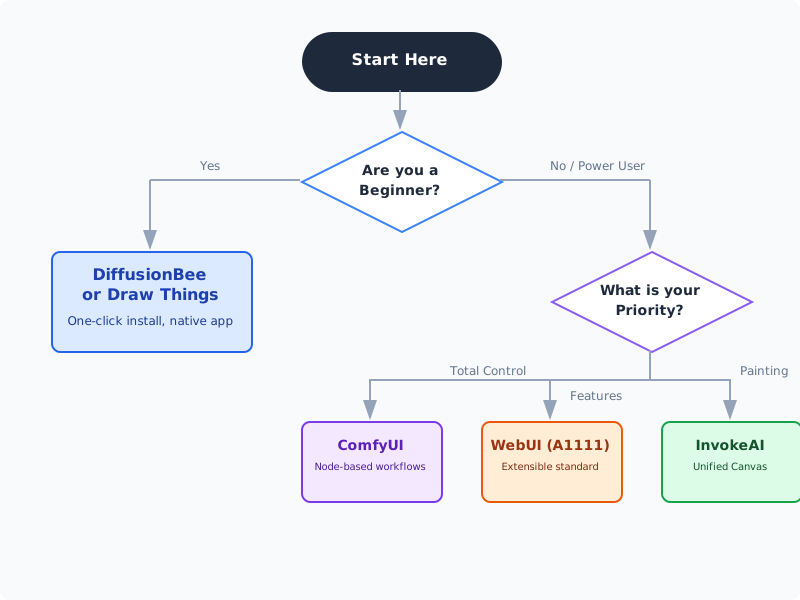
Practical tips for Mac users
1. System requirements
- RAM matters most:
- 8GB: Doable for basic 512x512 images, but expect slowness and crashes with newer models like SDXL.
- 16GB: The comfortable minimum. You can run most things, SDXL included.
- 32GB+: The dream. You can keep multiple models loaded and multitask while generating.
- Storage: Models are large (2GB to 6GB each). If your Mac is low on space, get an external SSD.
2. Where to get models
The software is just the runtime. You also need models.
- Civitai: The largest community hub. Look for "Checkpoints" compatible with SD 1.5 or SDXL.
- Hugging Face: The "GitHub of AI". More technical, but the official source for base models from Stability AI.
- File types: Prefer
.safetensors. Avoid.ckptwhen you can, since it can theoretically contain malicious code (rare in practice, but possible).
3. Start simple
Don't try to install ComfyUI on day one. Start with DiffusionBee or Draw Things and get a feel for how prompting works. Once you hit a wall ("I wish I could control the pose of this character..."), then look into ControlNet and the more advanced tools.